How to install and set up Happ on Android TV
To set up Happ on Android TV, you need to be connected to the same Wi-Fi network as your Android TV and have the Happ app installed on a mobile device.
📱 Installing Happ on a mobile device
Through your account
-
Open your account — Sign in to your account via the bot or website
-
Start setup — Click the "Start setup" button on the main page of your account
-
Choose OS — Select your operating system from the list
-
Install Happ — Choose the Happ app, click "Continue" and follow the instructions
📺 Installation on Android TV
🚀 Getting started
Download the Happ app from Google Play and launch it
If your Android TV doesn't have Google Play, download the .apk file here: Happ.apk
Then transfer it to your TV or set-top box using any convenient method to install.
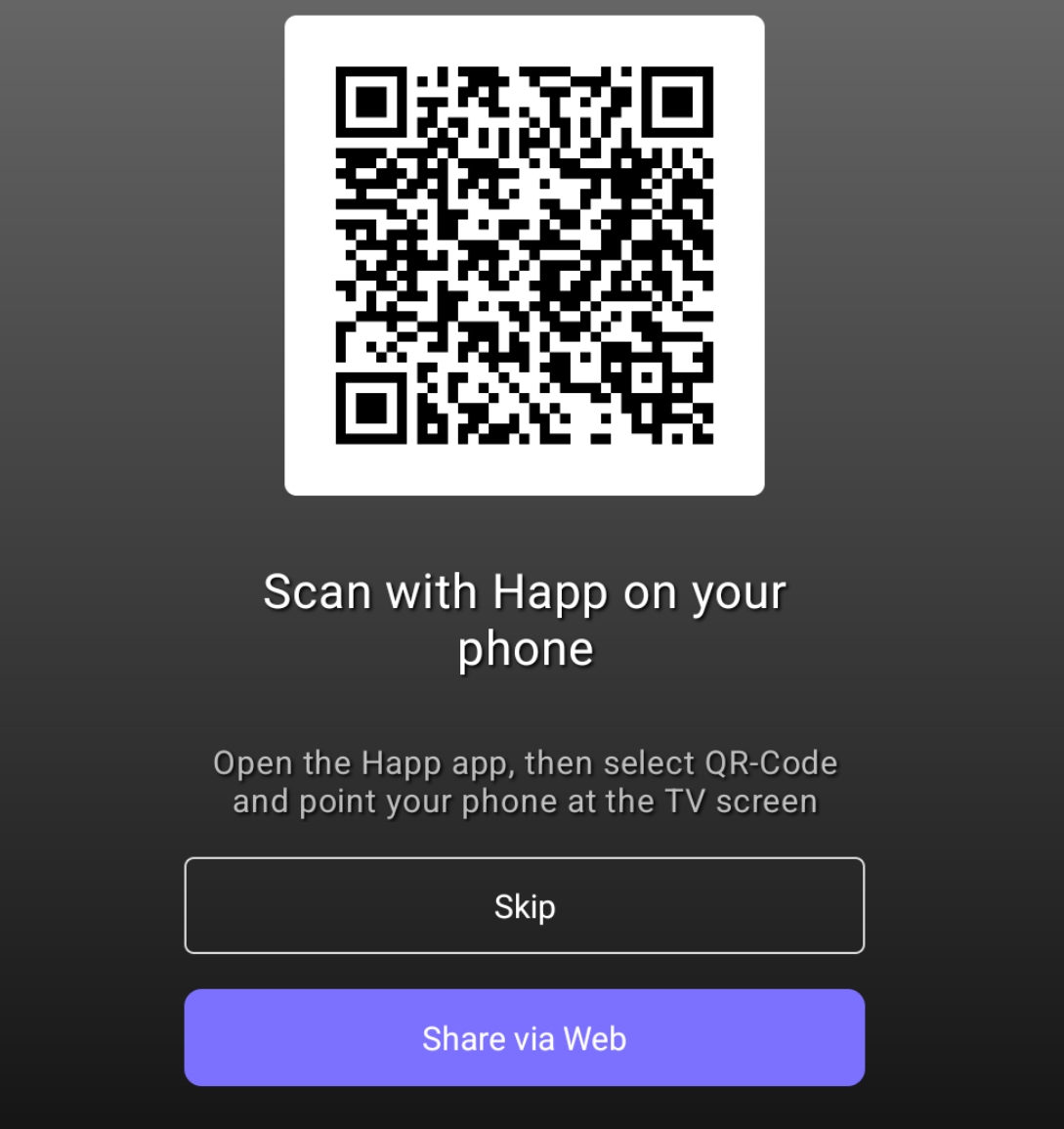
💡 Important: On first launch of Happ on your Android TV, a window with a QR code will appear. You need to scan it using Happ on your mobile device.
🔧 Setup methods
📷 Method 1: Via QR code
📱 On your mobile device
1. Open the Happ app
2. Tap "+"
3. Select "QR code"
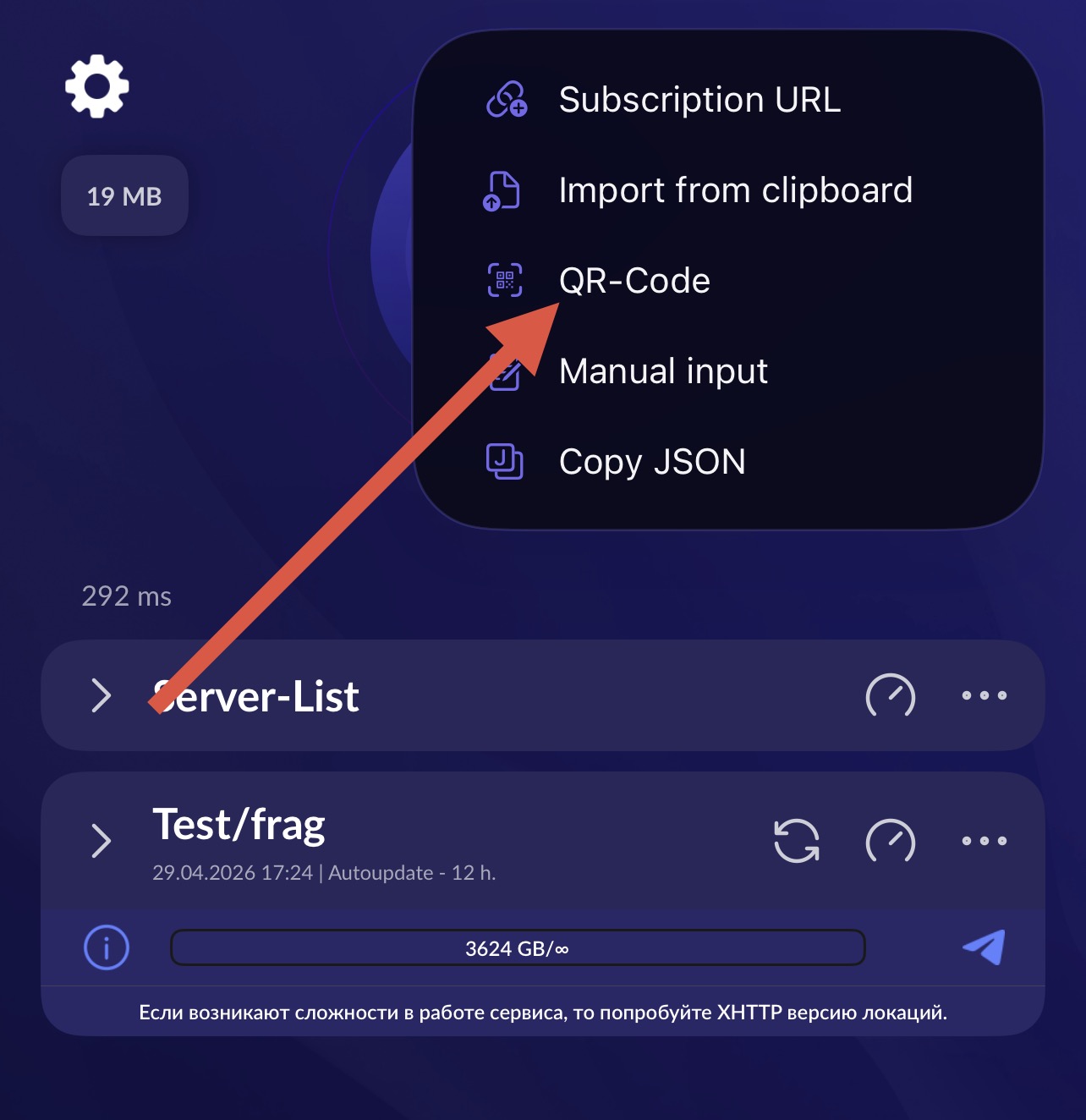
📺 On your TV
The QR code will appear automatically on first launch
Finishing setup
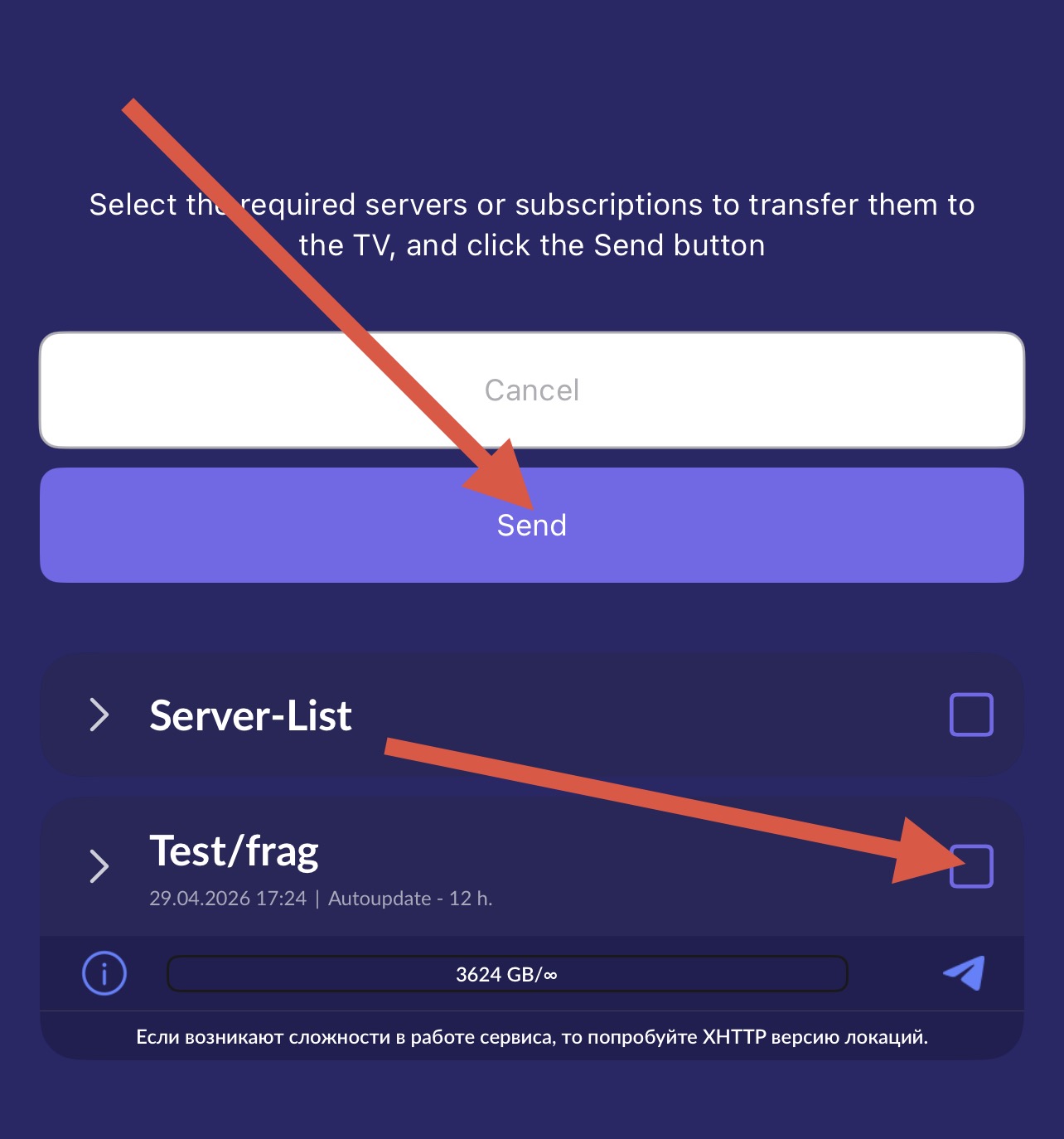
1. Select a profile
- Choose the locations you'd like to use on your Android TV
- Tap "Send"
2. Scan the QR code
- Point the camera at the QR code on the TV
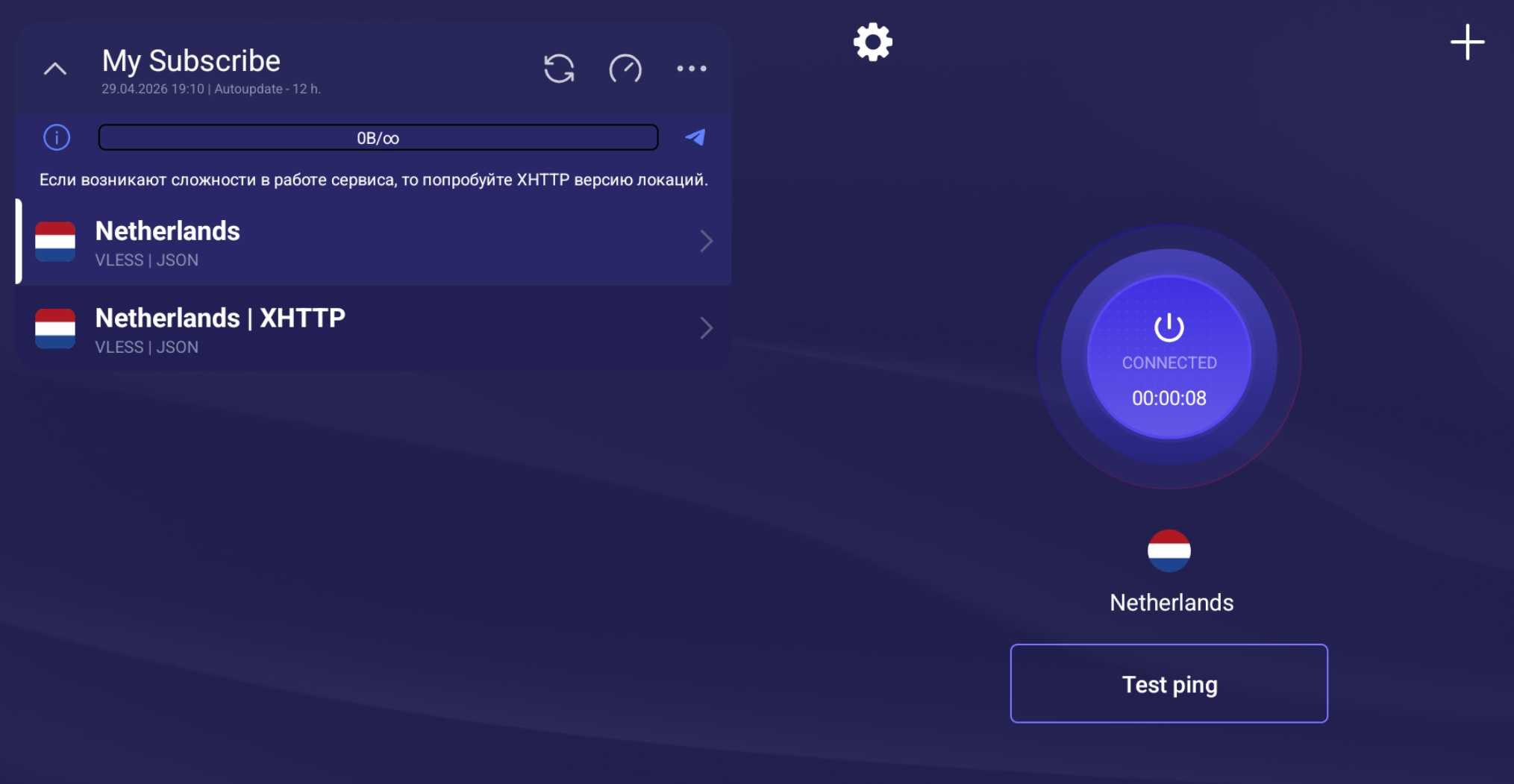
3. Activate the VPN
- Make sure the server is selected from the list
- Press the large VPN connect button
🌐 Method 2: Via Web
Step 1: Get the code on your TV
Actions:
- Open the Happ app on Android TV
- Click the "send via web manually" button
- Note the 5-digit code on the left of the screen
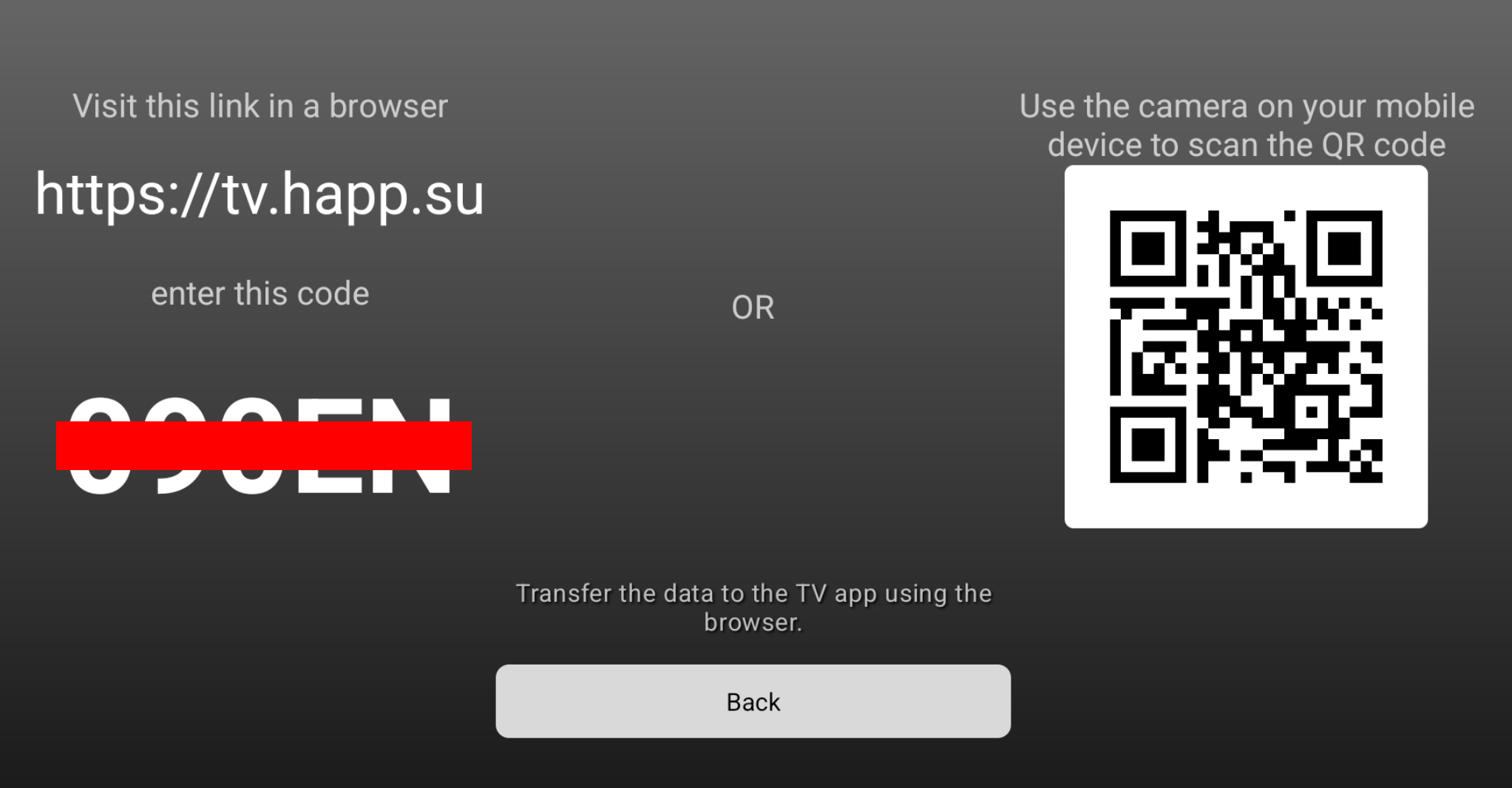
12345Step 2: Copy the subscription
Actions:
- Open your account in the bot or on the website
- Go to the subscription section and copy your subscription link
Step 3: Send the data
Actions:
- Open tv.happ.su
- Enter the TV code (5 digits)
- Enter the link from your account
- Click "Send data"
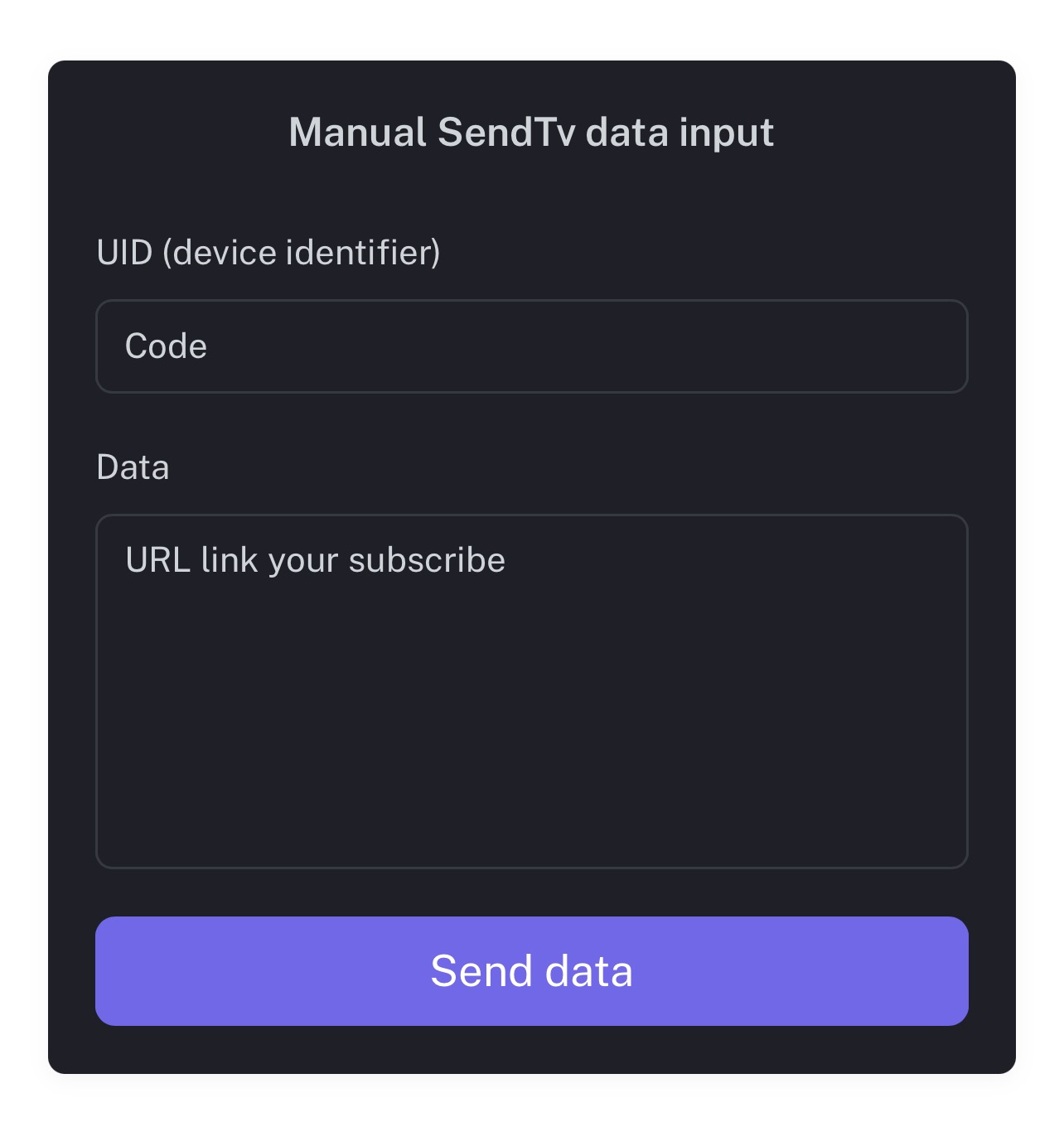
If everything was done correctly — a confirmation with a green checkmark ✅ will appear on the website, and the subscription will be added to your Android TV.
Step 4: Activate the VPN
- Make sure the server is selected from the list
- Press the large VPN connect button