How to install and set up luci-app-xray on OpenWRT?
Prerequisite: Installing the terminal
Easy installation via the web interface
luci-app-ttyd can be installed directly from the OpenWRT web interface, which makes the whole setup much easier.
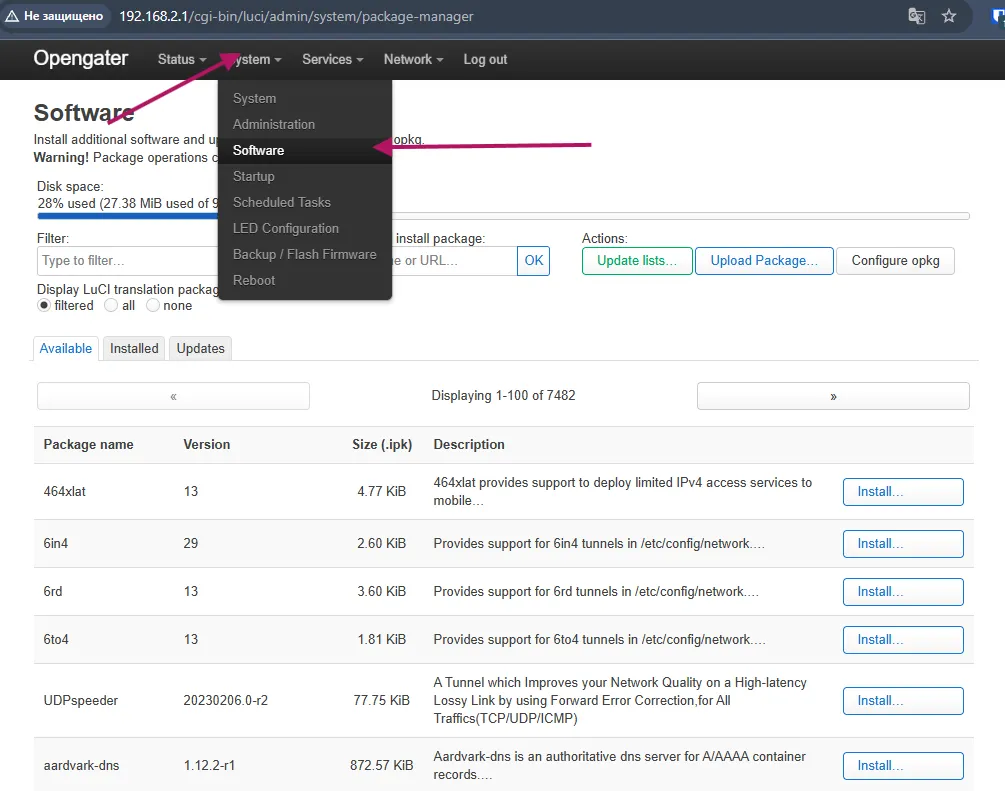
Go to System → Software
Open the router's web interface and go to the System tab, then select Software
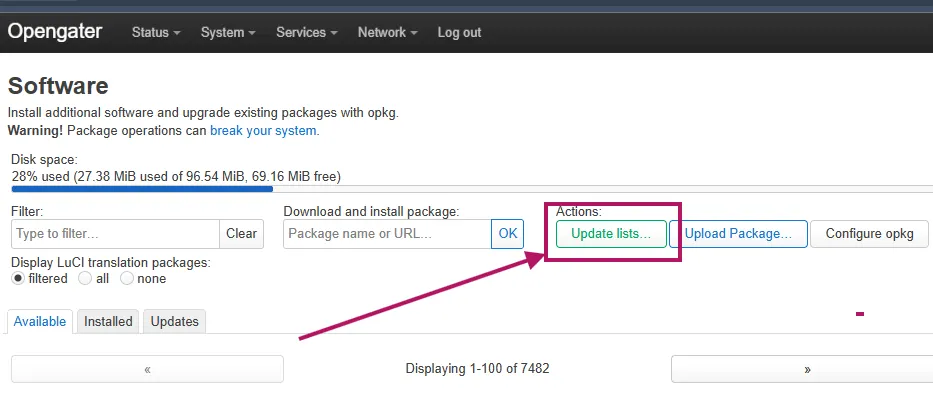
Update the package list
Click the "Update lists" button to refresh the list of available packages
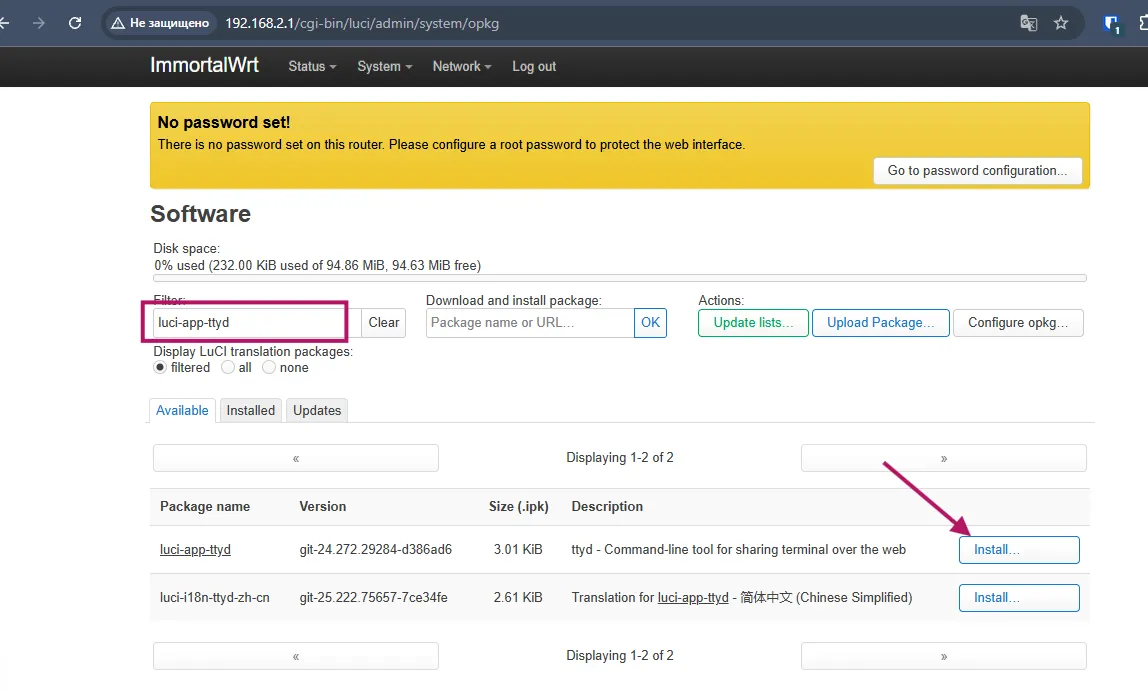
Install luci-app-ttyd
Find the luci-app-ttyd package via search and install it
Installing dependencies
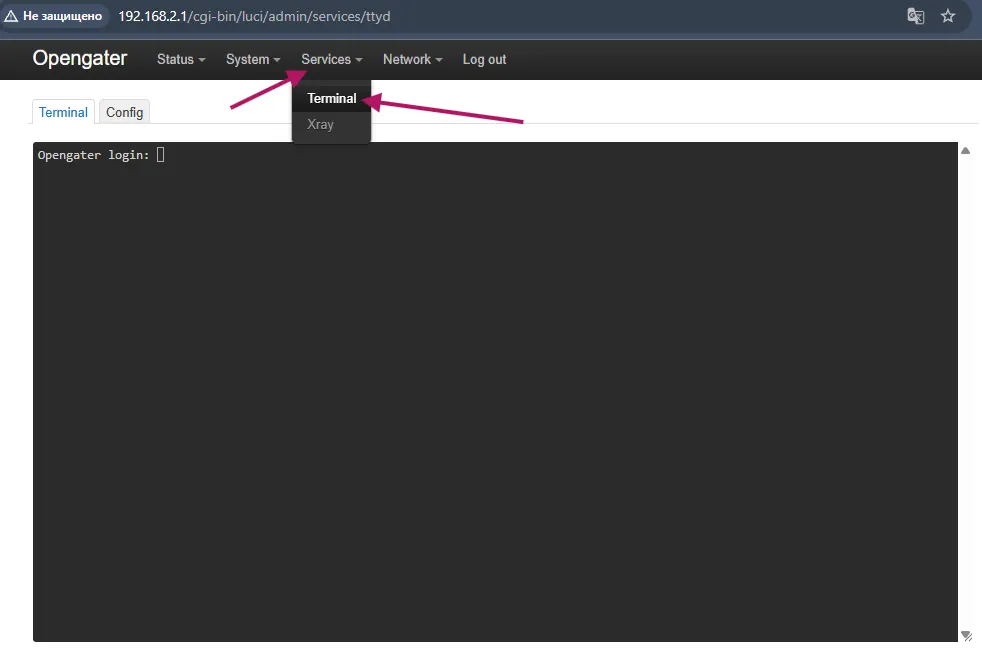
Open the terminal
Go to Services → Terminal in the router's web interface
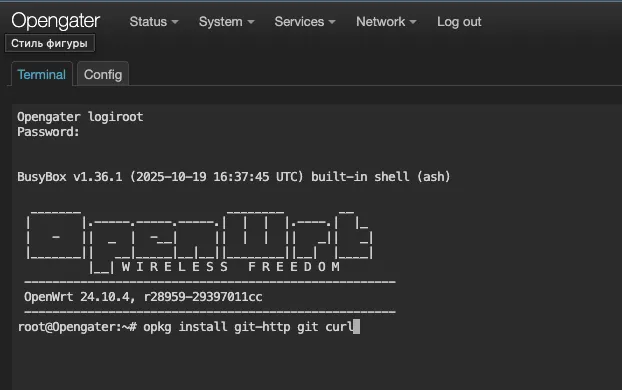
Install git and curl
Run the command to install the required packages:
opkg install git-http git curl
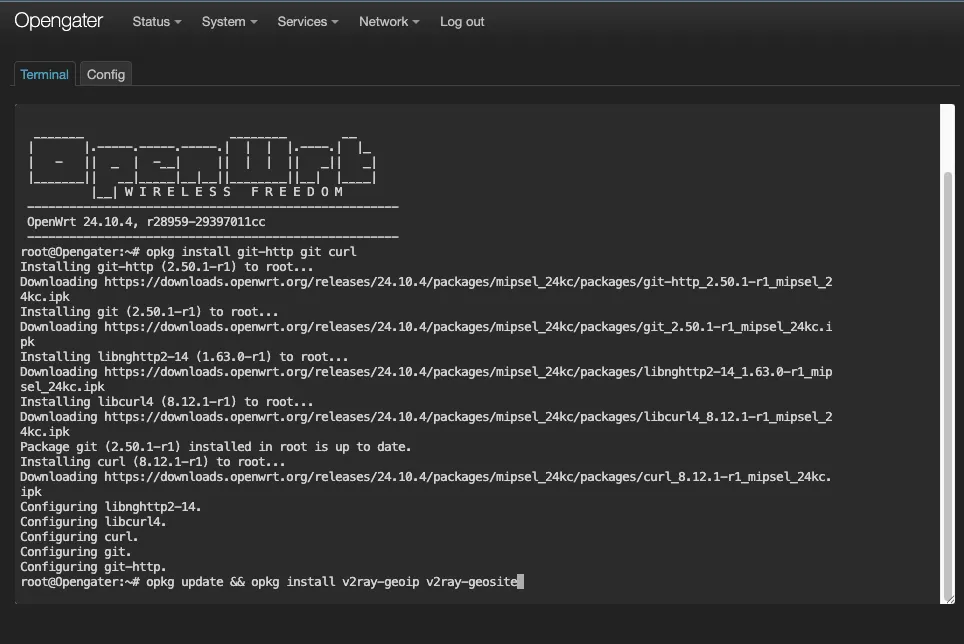
Install geodata for v2ray
Update the package list and install geodata:
opkg update && opkg install v2ray-geoip v2ray-geosite
Installing luci-app-xray
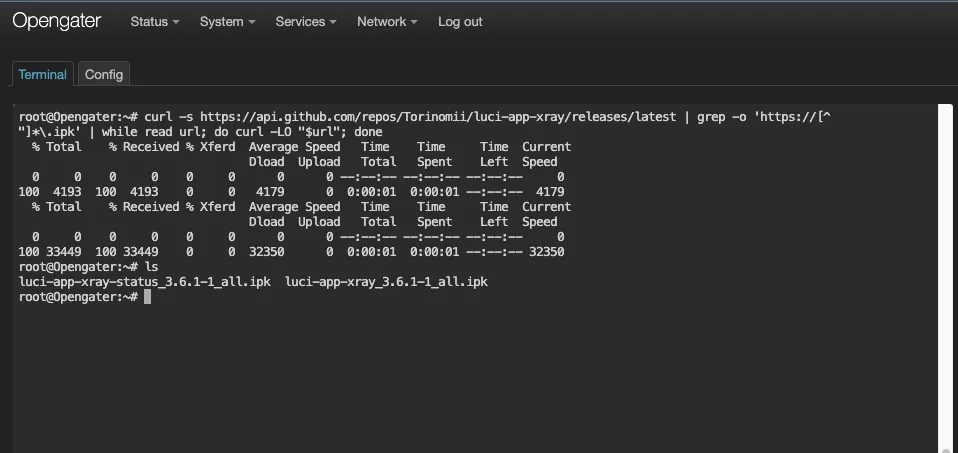
Download files from the release
Run the command to download the latest release:
curl -s https://api.github.com/repos/Torinomii/luci-app-xray/releases/latest | grep -o 'https://[^"]*\.ipk' | while read url; do curl -LO "$url"; done
Files can also be downloaded manually from GitHub
Install the downloaded packages
Run the install commands:
opkg update
opkg install *.ipk
Reboot the router
You must reboot the router for the changes to take effect:
reboot
Done!
After rebooting, a new menu item Xray will appear
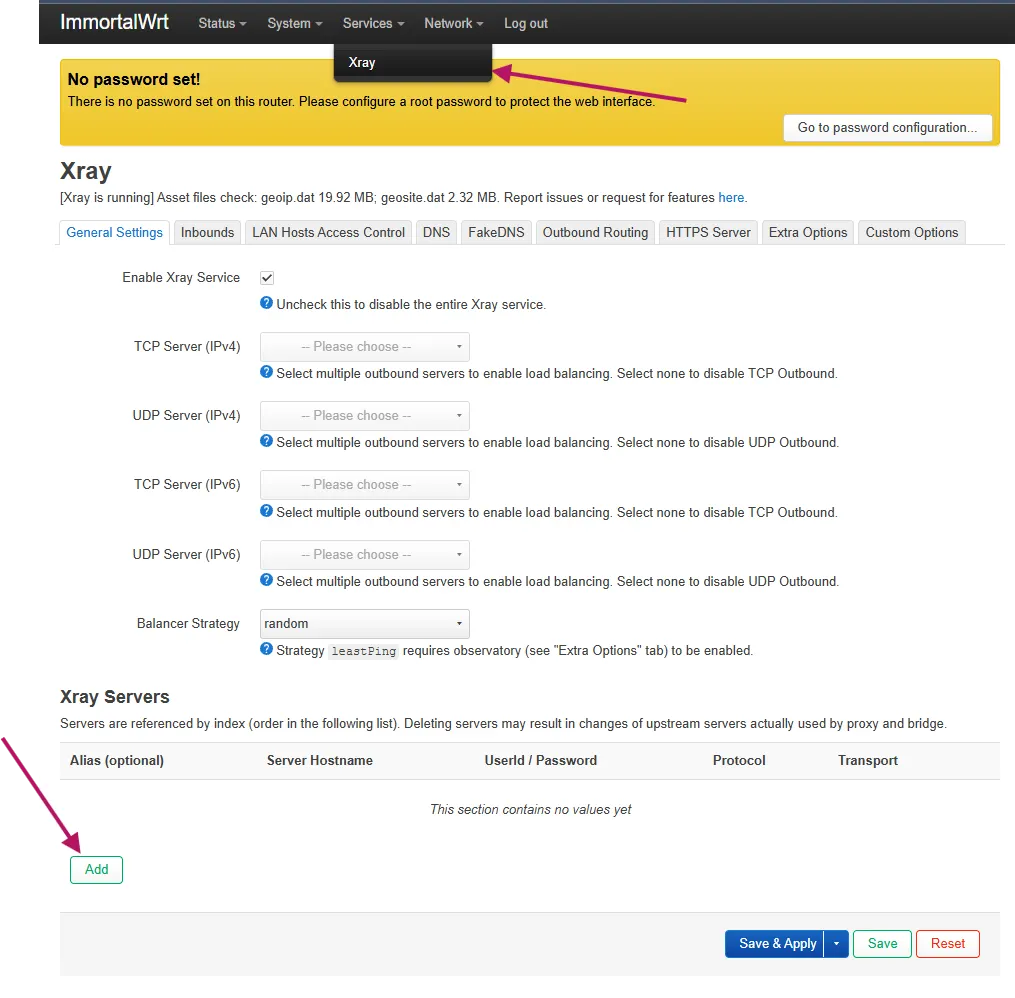
Configuring Xray
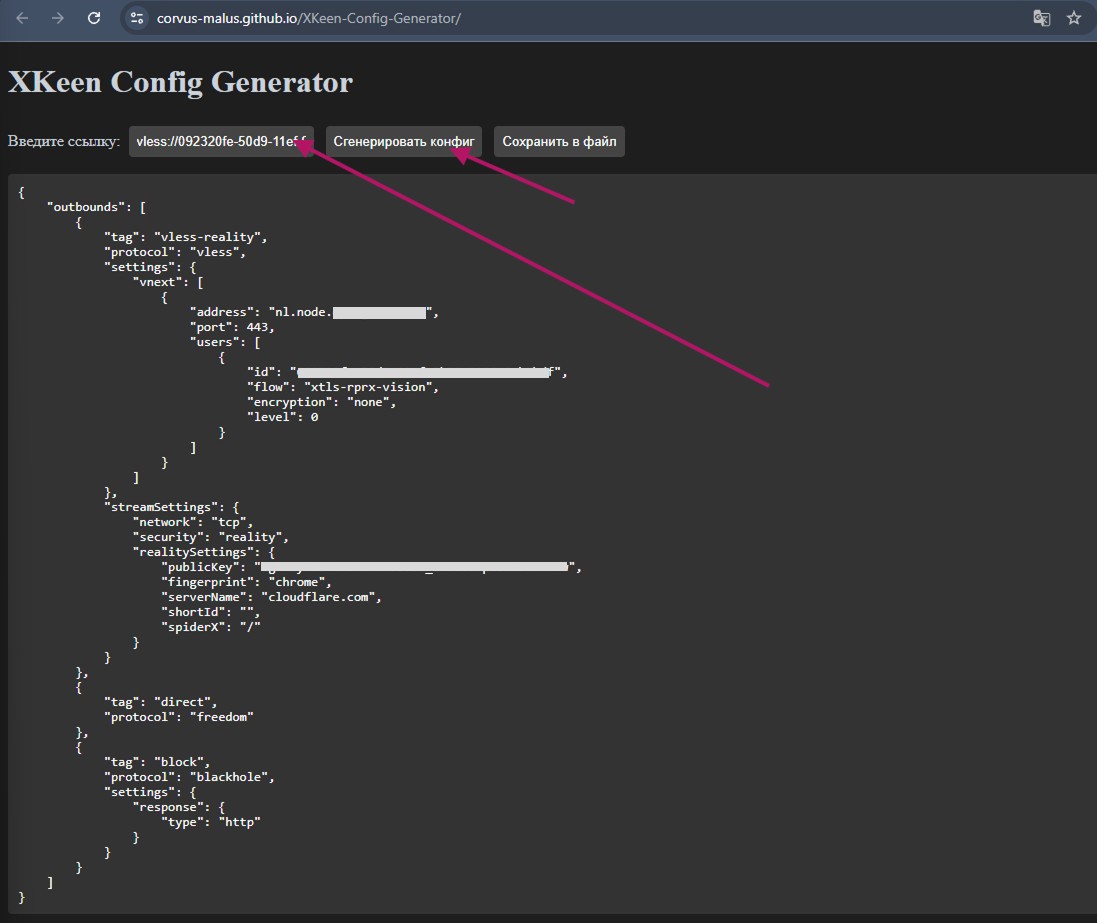
Get the VLESS key
Go to the bot → Subscription → VLESS Key and copy your link
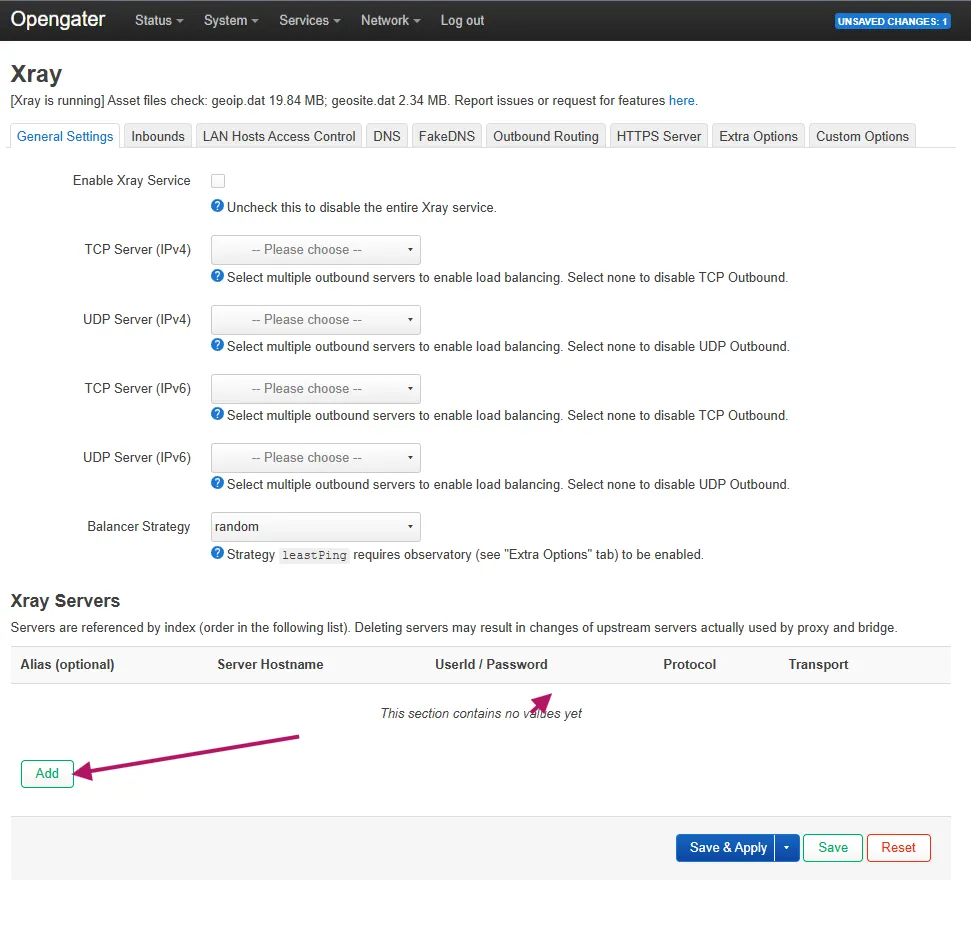
Add a server in Xray
Click the "Add" button in the Xray Servers section
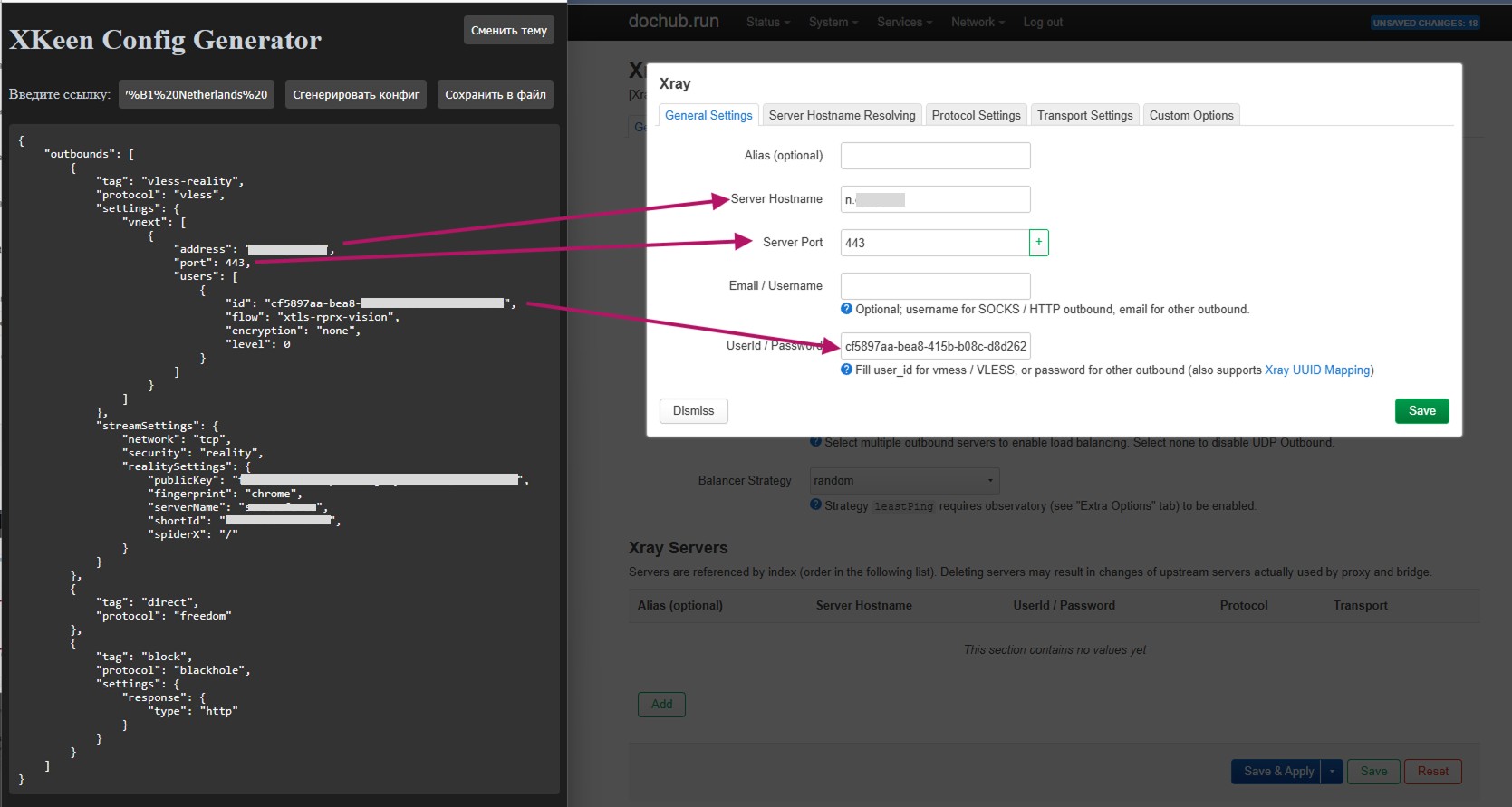
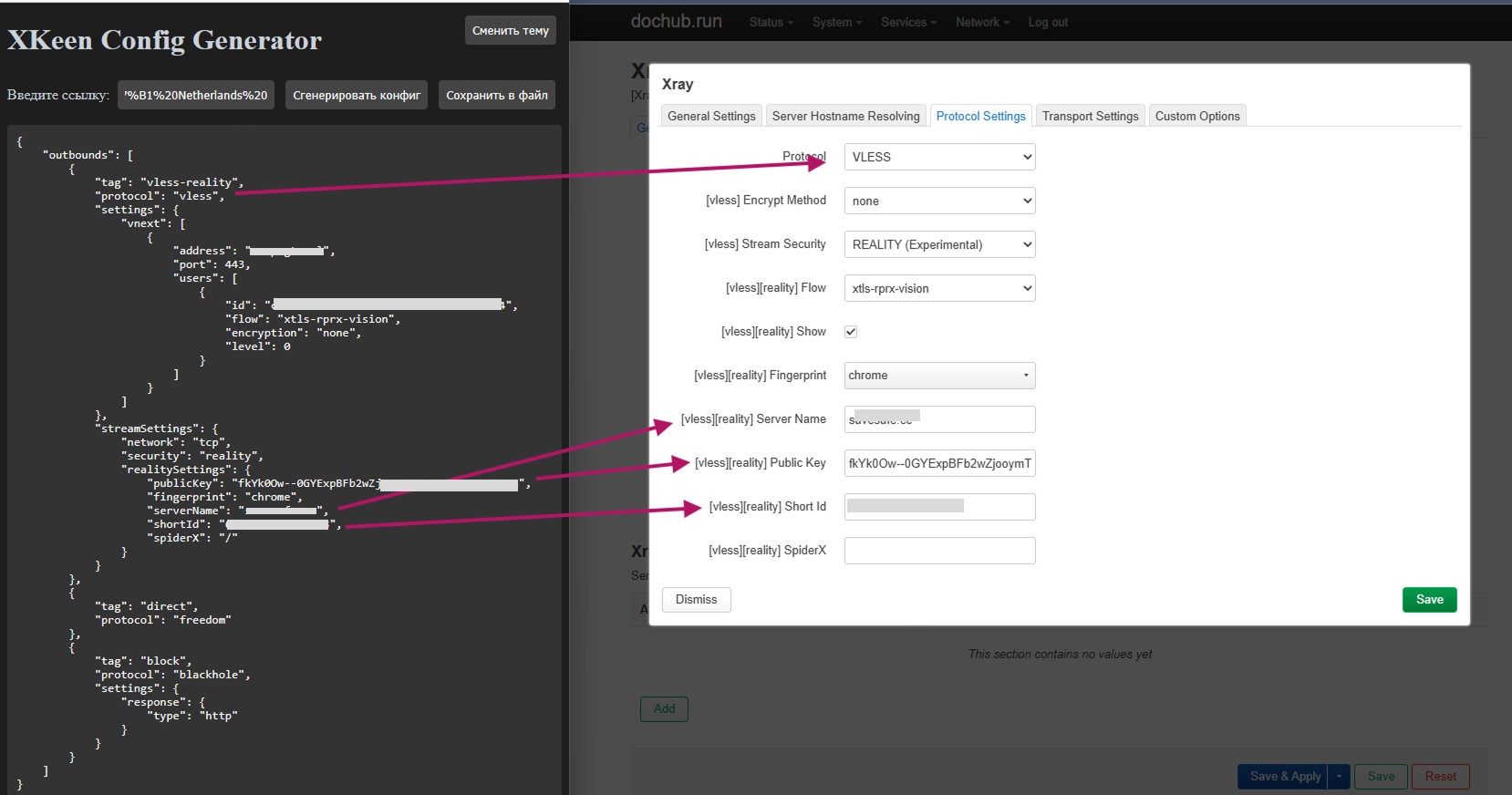
Transfer the settings from the generator
Copy the data from the config generator into the corresponding Xray settings fields
Fill in Transport Settings
Go to the next tab and fill in the transport settings
Save and activate
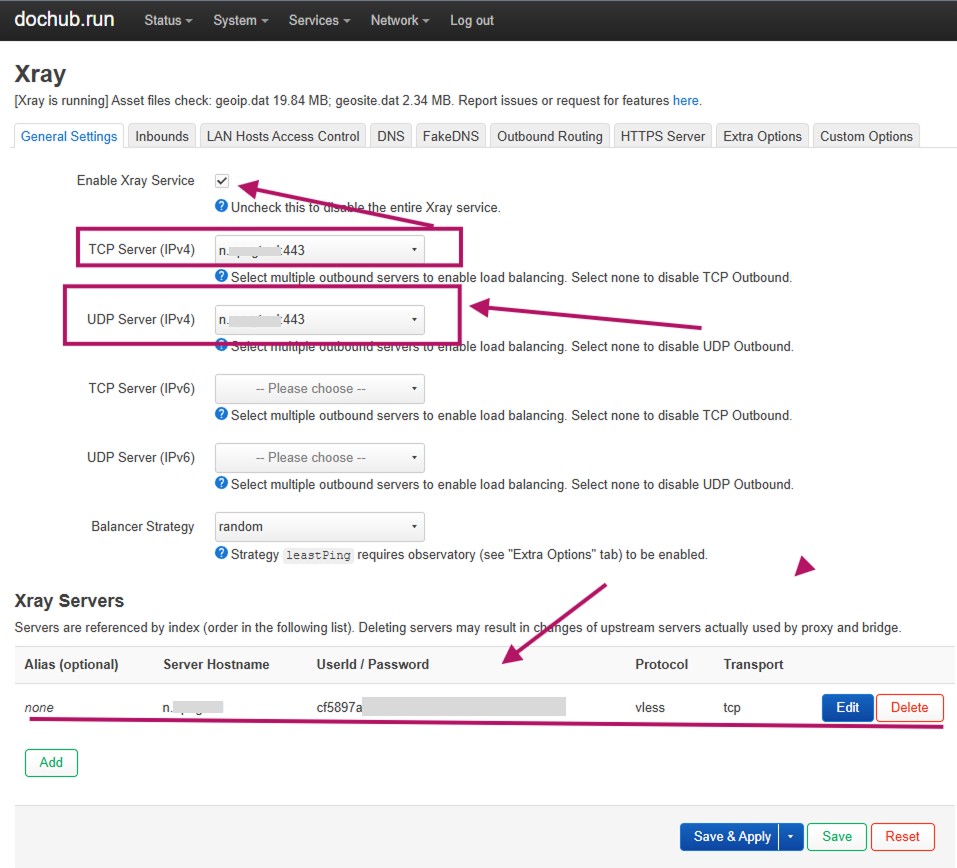
Enable Enable Xray Service, select the server in TCP/UDP Server, and click "Save & Apply"
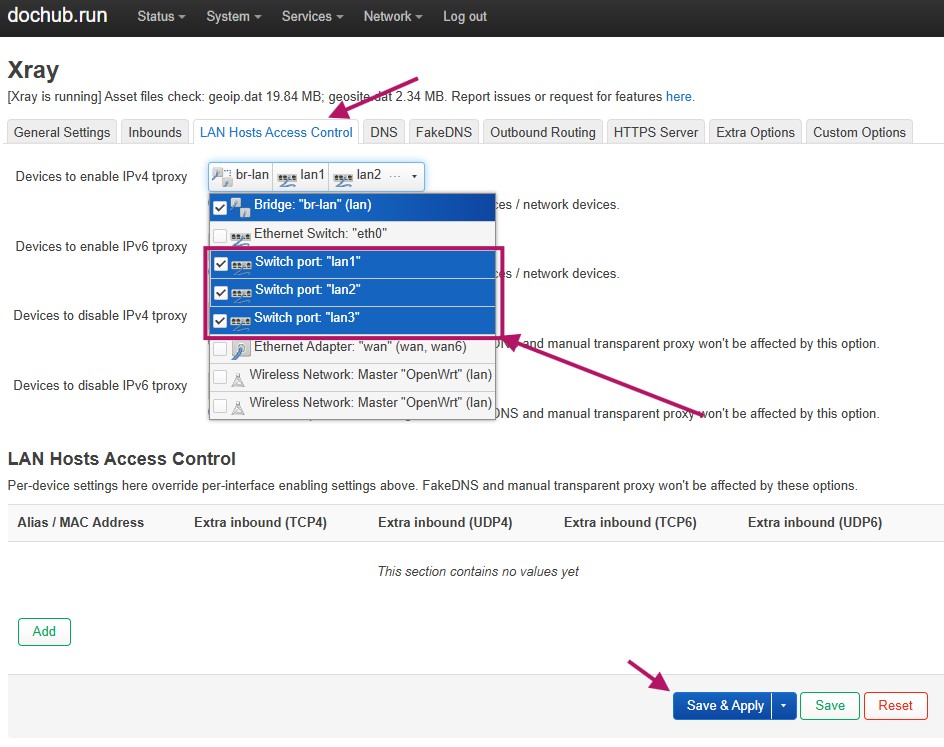
Configure LAN Hosts Access Control
Go to the LAN Hosts Access Control tab and select the devices to route traffic for