How to install and set up Happ on Windows?
Download links
Installation
Download and install the Happ app
Download the installer from the link above and run it.
Important!
The app must be run with administrator privileges!
In your account
- Open your account in the bot or on the website
- Tap the "Subscription" section
- Copy your link
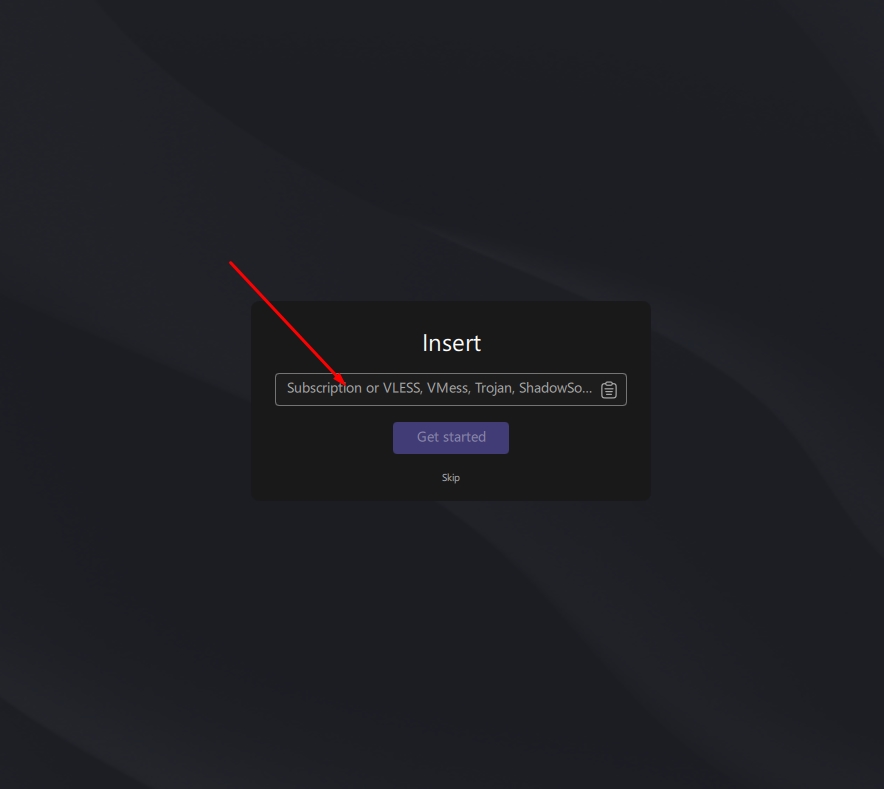
Paste the link on first launch
On first launch, Happ will show a window where you need to paste the link and click "Let's go"
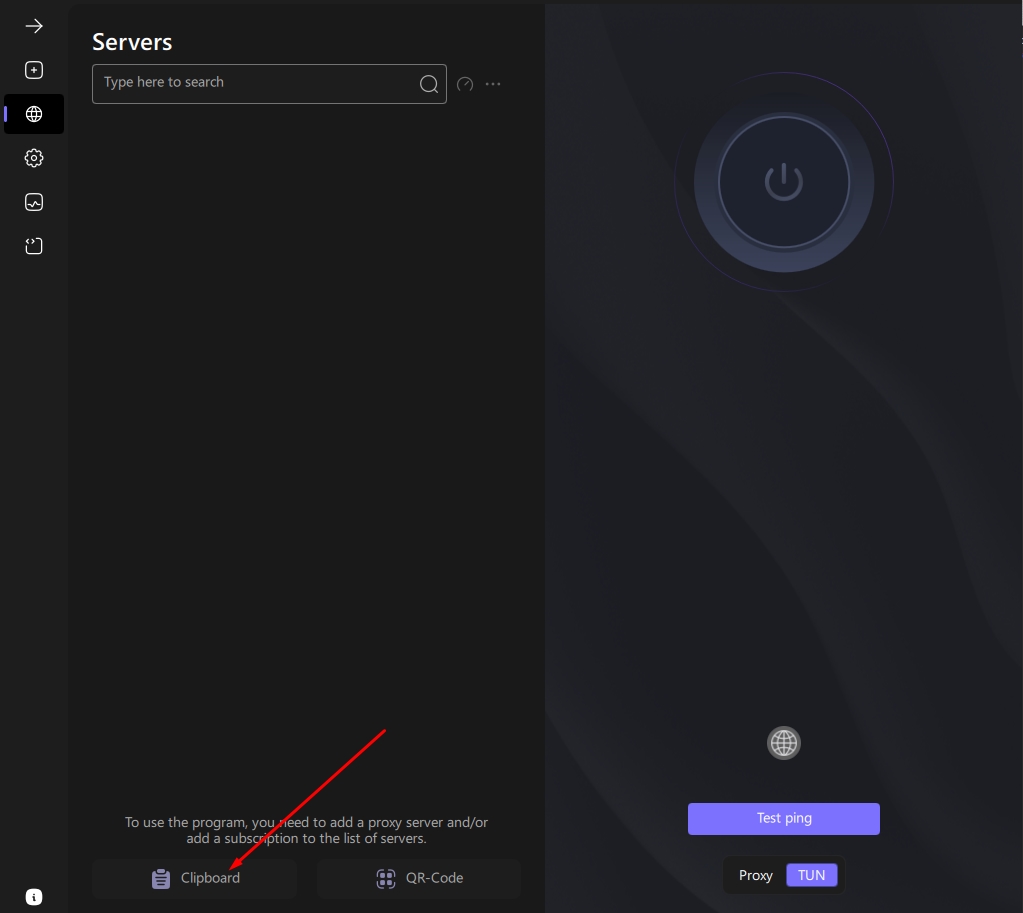
Or add the subscription later
If you missed the subscription window, click the "From clipboard" button
Connect
After adding the subscription, your profile will appear on the left. Choose a location and connect via the large button on the right.
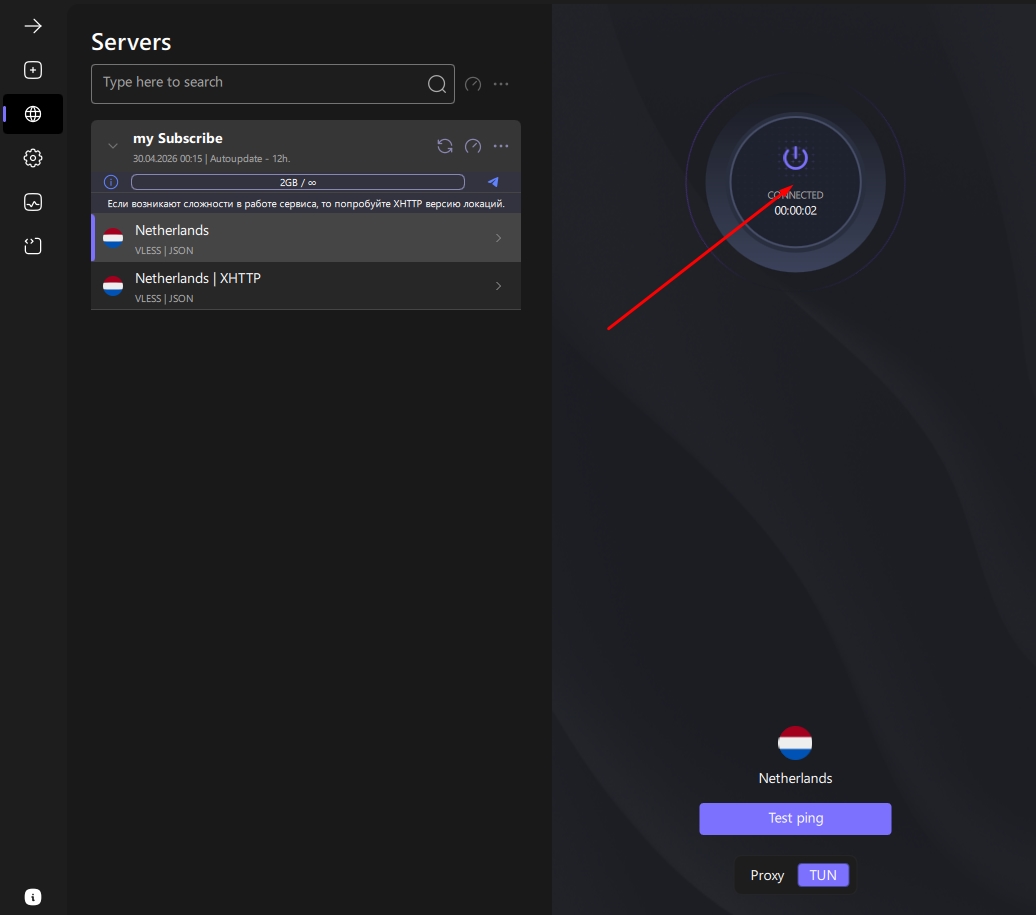
Done!
The connection is established and ready to use
Switching modes and servers
If the main server is not working
Disconnect, select the XHTTP server, and connect again.
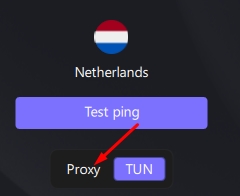
Operating modes: TUN and Proxy
The default mode is TUN. If it doesn't work on your device — disconnect, switch to "Proxy" mode, and connect again.
Updating the subscription
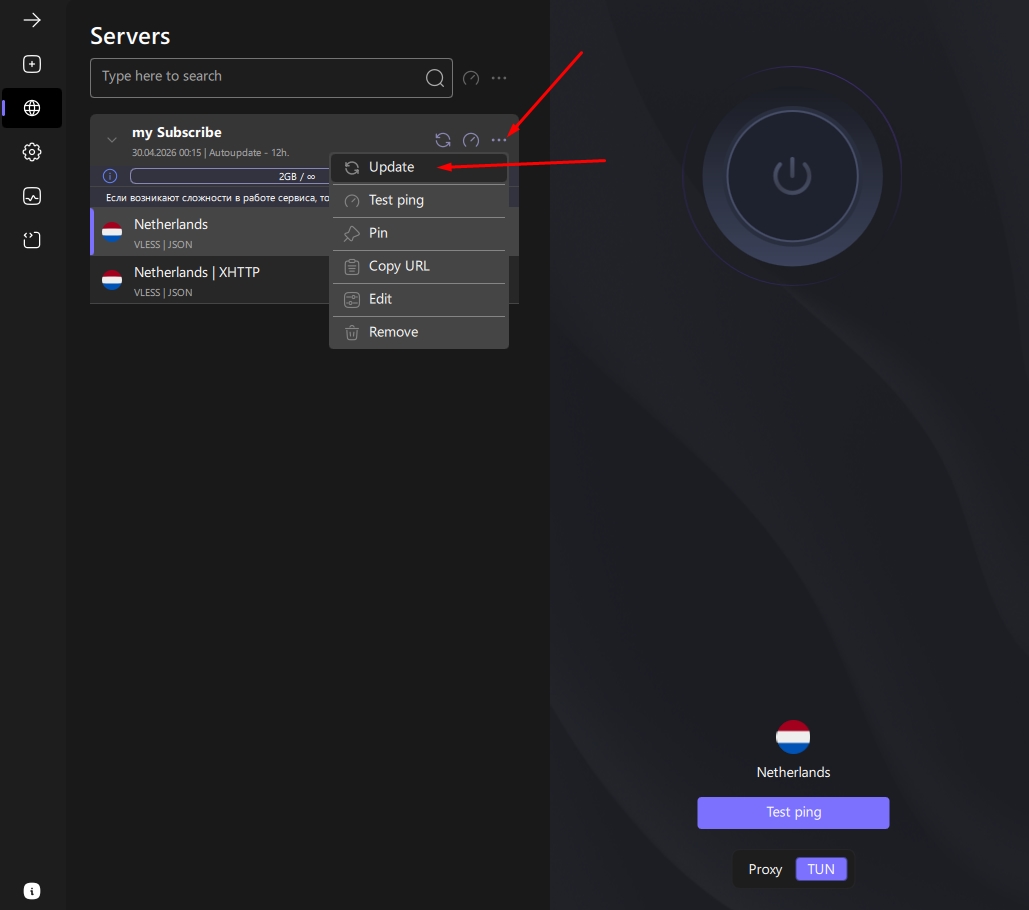
Open the subscription menu
Click "..." next to the subscription name and select "Update"
Important!
You must update the subscription while Happ is turned off!
Updating the Happ version
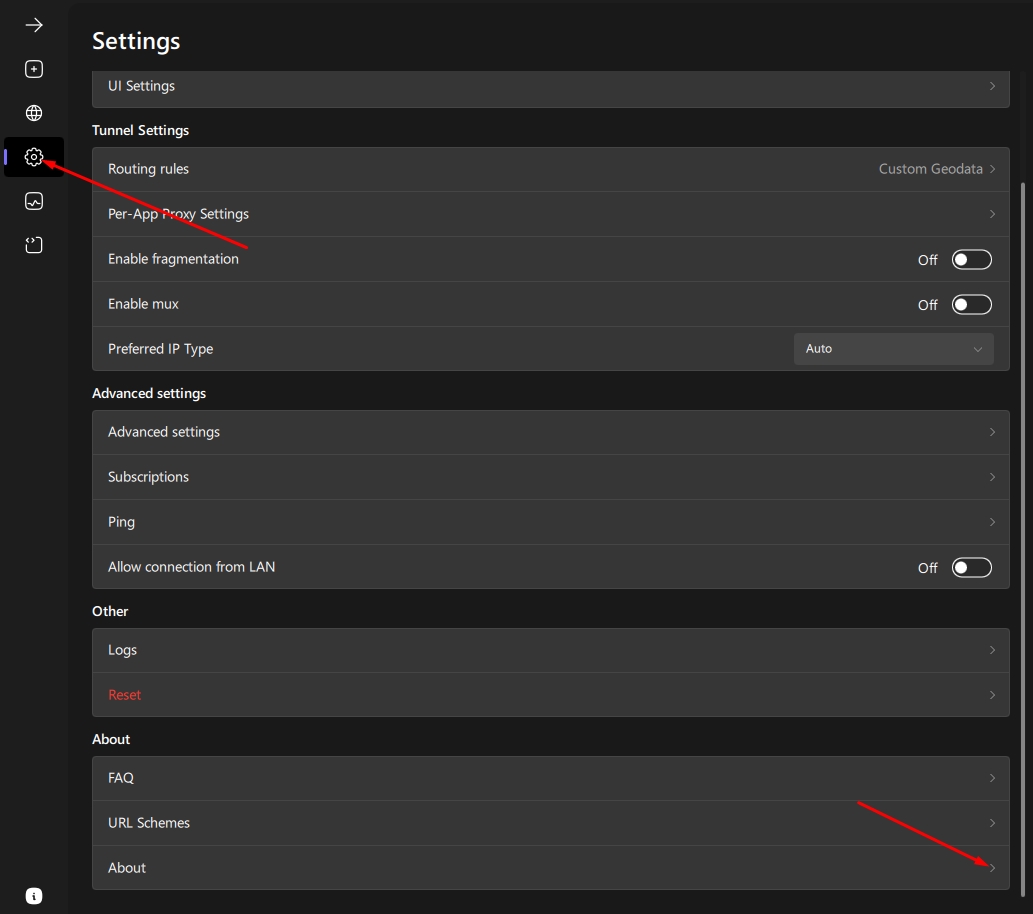
Open settings
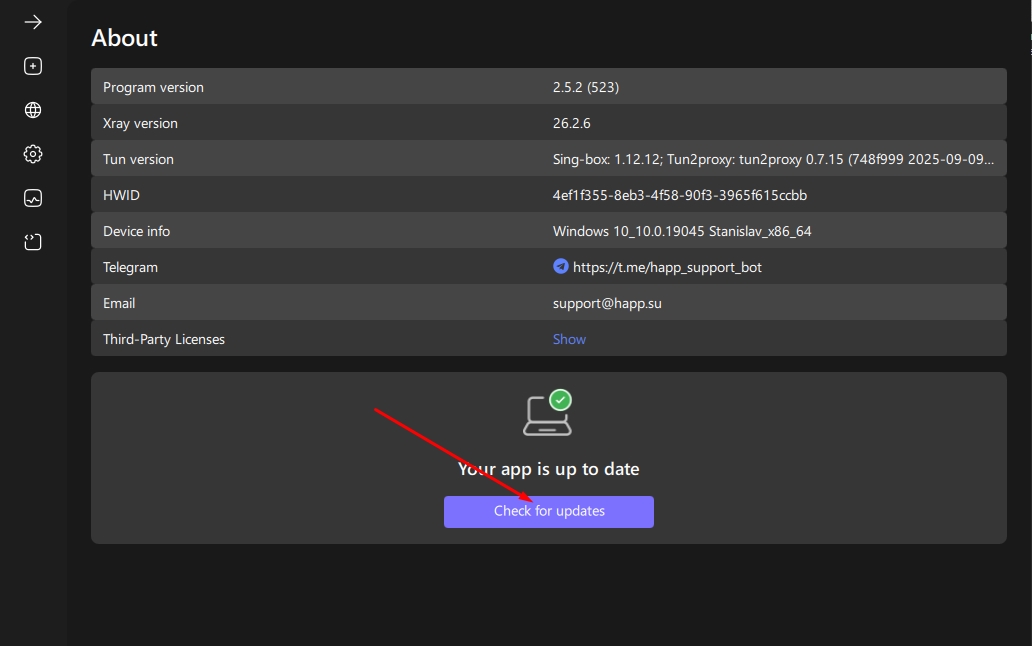
Go to settings and scroll to the very bottom to "About"
Check for updates
Click "Check for updates", and once the check completes, click "Download". After downloading, the app will offer to reinstall to the latest version.