App routing
Happ for Android has a feature called "Proxy for selected apps" that lets you control which apps go through Proxy and which connect directly.
How to open the setting
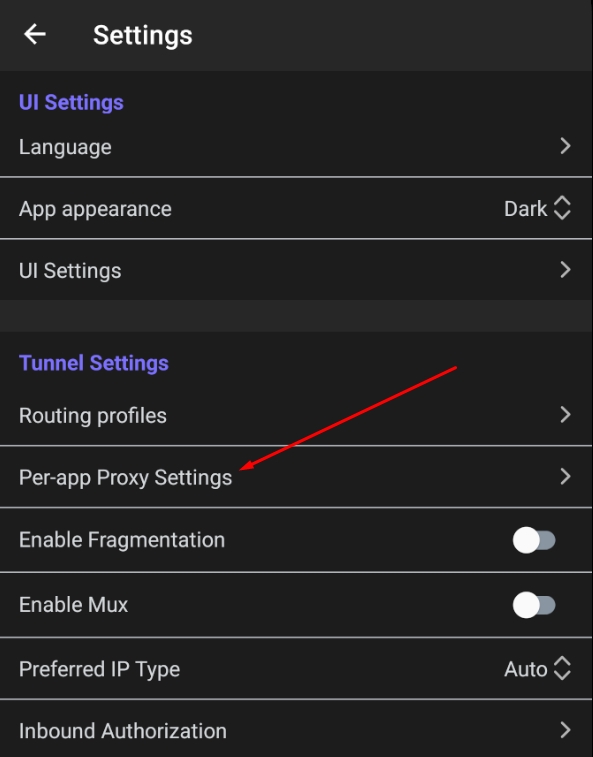
Open settings
Go to "Settings" → "Proxy for selected apps"
Modes
The feature has three modes. The key thing is to understand what the checkmark next to an app means in each mode.
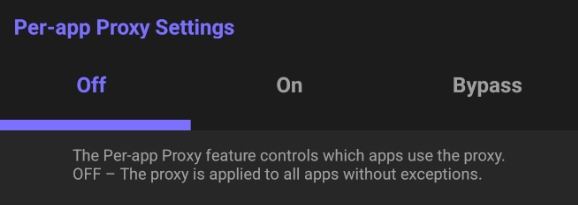
OFF (default)
Routing is disabled. All traffic from all apps goes through Proxy with no exceptions. The app list is inactive.
When to use: you want Proxy for the whole device.
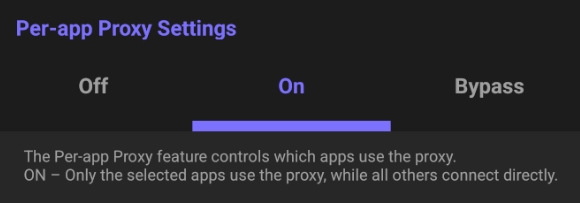
ON
Only the apps you check use Proxy. All other apps connect directly, bypassing the TUN tunnel.
When to use: you want Proxy for just a few apps (for example, Instagram, YouTube, TikTok), and the rest should connect normally.
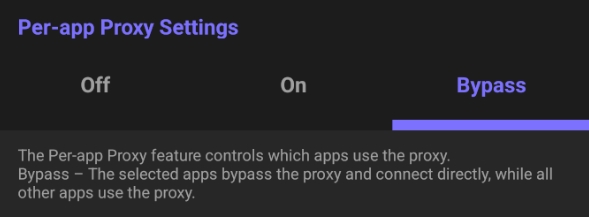
Bypass
The apps you check bypass Proxy and connect directly. All other apps go through Proxy.
When to use: you want Proxy for most apps but a few should connect directly (banking apps, government services, etc.).
Quick cheatsheet
Which mode should I pick?
I only want Proxy for a few apps → ON mode, check the apps you want
I want Proxy for everything except a few apps → Bypass mode, check the apps that should be excluded
I want Proxy for everything, no exceptions → OFF mode
Important notes
Turn Proxy off before configuring
Make all changes with Proxy turned off so the settings save correctly. After you've configured the list and picked a mode, turn Proxy back on.
Restart Proxy after changes
If you changed the list or mode while Proxy was running, the changes only take effect after you restart Proxy.