How do I update my subscription in V2RayTUN?
Update methods
- Quick update
- Force update
Update
Open the V2RayTUN app
Launch the app on your device
Tap the update button
Next to the subscription title, tap the update button
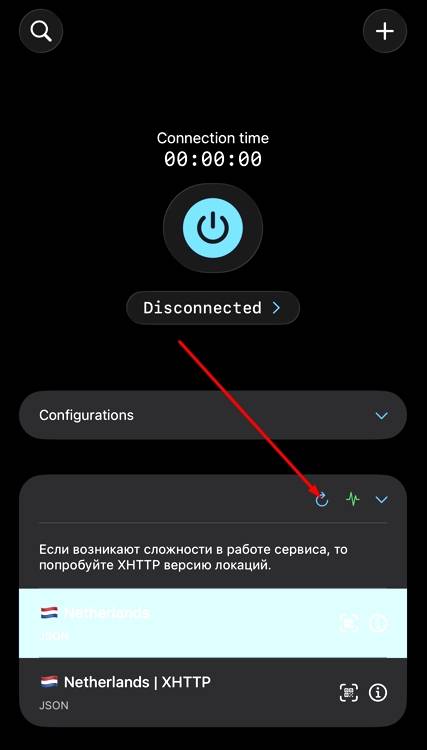
Done!
Subscription updated successfully. You can keep using the app
If a quick update didn't fix your problem, use the force update method on the second tab
Reinstalling the subscription
When to use this method?
Use force update if a quick update didn't work or if you're still experiencing subscription issues
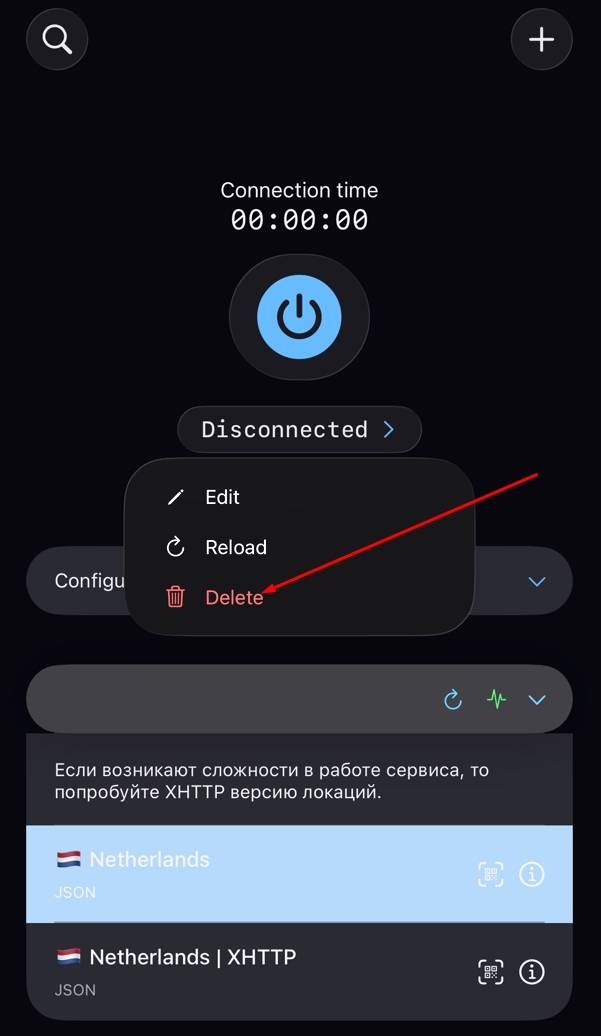
Long-press the subscription title
Find your subscription title and long-press it until a menu appears
Delete the subscription
In the menu that appears, choose "Delete"
Copy your subscription link
Open your account in the bot or on the website
In your account
- Open the "Subscription" section
- Find your subscription link
- Tap "Copy subscription"
Add a new subscription
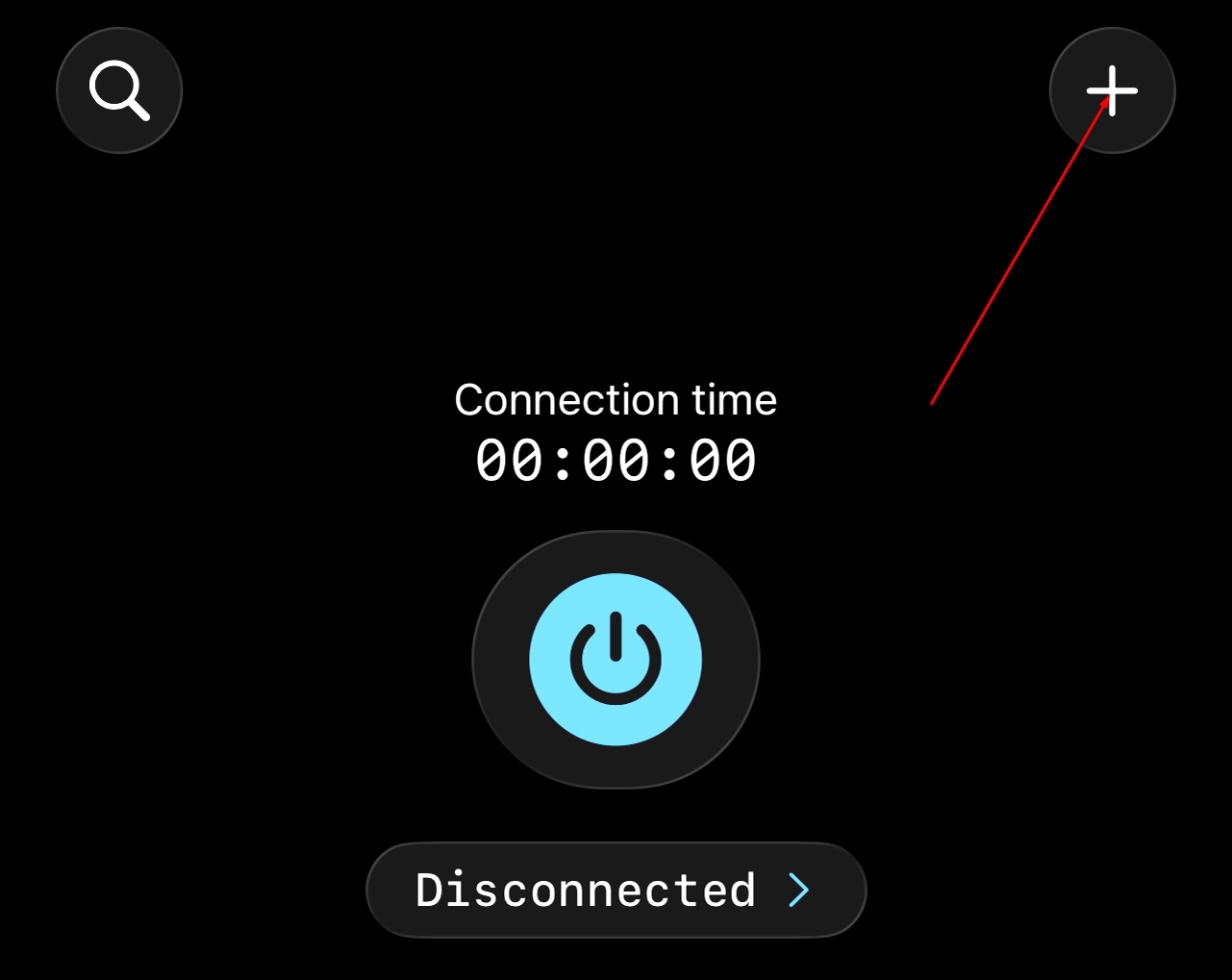
Go back to the V2RayTUN app and tap + in the top right corner
Add from clipboard
In the menu that opens, choose "Add from clipboard"
All done!
Subscription reinstalled successfully. You can turn VPN back on and continue working
Common issues
Subscription won't update
Check that your internet connection is stable and try again. If the problem persists, use the force update method
Error adding from clipboard
Make sure you copied the full subscription link from your account. The link should start with https://
Subscription doesn't work after the update
Try switching to a different server in the list. If that doesn't help, restart the app
Delete menu doesn't appear
Make sure you hold your finger on the subscription title long enough (about 1–2 seconds) for the context menu to appear
Additional recommendations
Update regularly
We recommend updating your subscription periodically to get the latest servers and the best connection performance